
End User Guide
MatrixIT Secure Share
A private Windows desktop app for sharing files and folders directly through Nextcloud. No localhost service, no Docker dependency, and credentials stored locally with encryption.
- Send files and folders quickly from a native Windows workflow
- Create secure links with passwords and expiry dates
- Optionally use advanced share options such as email share and request upload
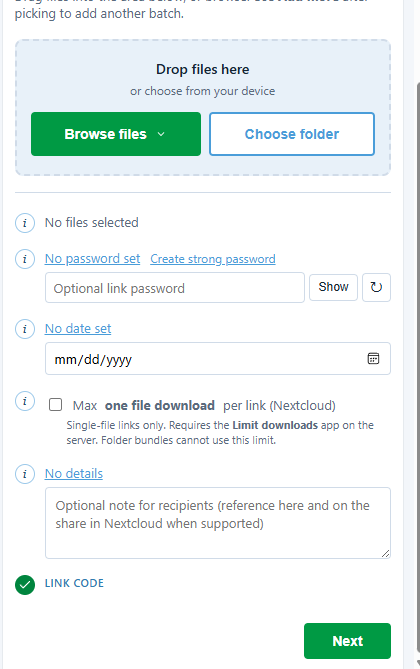
What This App Does
Before You Start
You will need
- A Windows PC with MatrixIT Secure Share installed
- Your Nextcloud server URL
- Your Nextcloud username
- A Nextcloud app password
- Internet access to your Nextcloud server
Your organization may also provide
- A preferred sender name or sender email
- Recipient email requirements
- Password or expiry rules
- Guidance on whether to use Public link, Email share, or Request upload
First-Time Setup
-
1
Open Settings
Launch the app from the desktop shortcut, Start menu, or system tray and open the Settings screen.
-
2
Enter your Nextcloud details
Fill in the server URL, username, and app password provided by your organization.
-
3
Test the connection
Click Test connection to confirm the app can reach your Nextcloud account.
Send Files or Folders
Basic flow
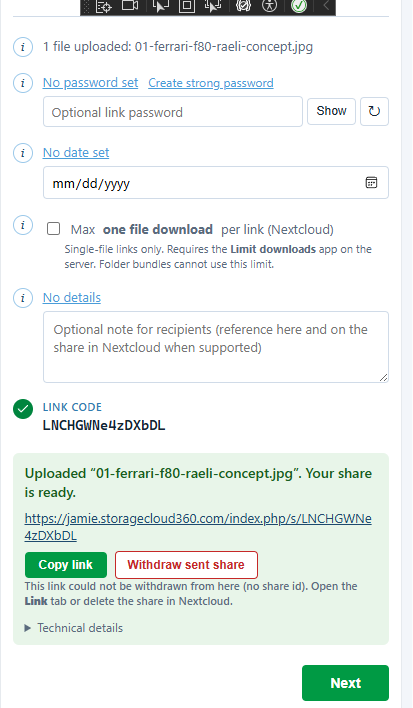
- Choose Browse files or Choose folder
- Select the content you want to share
- Optionally add a password, expiry date, and details
- Click Create link
- Copy the link and send it to the recipient
What happens in Nextcloud
- The app uploads your selected files or folders directly to Nextcloud
- The app creates a secure share according to the options you selected
- The app shows the resulting share link and, where applicable, the share location
Advanced Share Options
Public link
Best for a fast share where you want a simple link with optional password and expiry.
Email share
Use when you want Nextcloud to create a share tied to a specific recipient email address.
Request upload
Use when the recipient should be able to send files back into a dedicated request folder in Nextcloud.
Sender name or email
This optional field helps build a cleaner folder structure in Nextcloud.
If left blank, the app falls back to generic.
Request Upload Flow
-
1
Select Request upload
Open Advanced share options and change the share mode to Request upload.
-
2
Enter recipient email
This is required to enable the email-driven request workflow.
-
3
Create the request
The app creates a request-oriented folder in Nextcloud and creates the corresponding share.
-
4
Recipient uploads back to you
If supported by your Nextcloud server configuration, the recipient can use the share to upload files into that folder.
Folder Structure In Nextcloud
Sent items
MatrixIT Secure Share/Sent/YYYY/MM/<sender-or-generic>-<yyyymmdd-hhmm>-<label-or-share>/
Upload requests
MatrixIT Secure Share/Requests/YYYY/MM/<sender-or-generic>-<yyyymmdd-hhmm>-<label-or-share>/
This makes it easier to distinguish files you sent out from files uploaded back to you.
Troubleshooting
If connection testing fails
- Check the server URL
- Check your username and app password
- Confirm the Nextcloud server is reachable
If advanced email/request options do not behave as expected
- Email sharing may depend on server-side Nextcloud configuration
- Password email behavior may vary by server setup
- Request upload depends on the server supporting that share model